Thursday, 7 November 2013
Unity for ID@Xbox Developers!
But, with the announcement that the Unity Pro version would be FREE to ID@Xbox developers, I had to check it out. I first heard about this via the awesome Facebook group I am a member of, Xbox Indie Devs, where one of the guys on there reported that Unity had posted an article on their blog about it, which then also took me to the Xbox news for the same thing, so I had to go and get me a copy to try it out, and I have to say, I am quite impressed with what I was able to do in just a few short hours.
This is the culmination of a couple of lunch hours and an evening with Unity and the Unity online beginners help.
In this scene are three animated mesh’s (you must recognise Dude!) as well as three point lights a number of cubes, and a cavern mesh, I have some physics in there too for the box’s and the dudes.
I am really impressed with Unity, and how easy it was to create something so quickly, even if you are not part of the ID@Xbox program, then I would suggest you check it out anyway. I am just hoping I am going to be able to write my own shaders for it, as well as do Post Processing and all the other great stuff I have learnt from XNA. I dare say I will, I just have lots to learn, again…
So, with that I am hoping to start posting my adventures in the world of Unity, and hope it helps others as they come to use it.
Sunday, 15 February 2015
Unity3D Shaders
So, I hope, prior to reading this tutorial you have read my previous post laying down some fundamental ideas we sort of need before we start to look at creating shaders. If you haven't, then please, hop back and have a read of it here, or simply click the << Previous links at the top and bottom of this post.
Ill repeat my caveat here, I am no shader or Unity expert, these posts are based on what I have found through my own exploration of shaders in Unity, but I hope what you find here gives you some pointers and ideas for your own shaders and adventures creating shaders :)
Unity gives us a few shader types that we can write, surface shaders, as well as vertex and fragment shaders.
If you are coming from XNA/DX vertex shaders are the same as DX9 vertex shaders and fragment shaders are the analogue of pixel shaders. In XNA there is no analogue with surface shaders.
If you have no experience of shaders at all, then I had best describe to you the difference of each of these shaders.
Vertex Shader
A vertex shader is a function that runs on the GPU, it takes a single vertex (as described in the last post) and places it on the screen, that is to say if we have a vertex position of 0,0,0 it will be drawn in the centre of out mesh, if the mesh then has a position of 0,0,10 the vertex will be drawn at that position in the game world. This function returns this position data, as well as other data back to the graphics pipeline and this data is then passed, after some manipulation, to the pixel shader, or in the case of Unity, it may be passed to a surface shader, depending how we have written it.
A vertex shaders calculations are done on each vertex, so in the case of our quad from earlier, this would be executed 6 times, once for each point of the two triangles the quad is made up of.
Pixel Shader
The pixel shader is given each and every pixel that lies with in each of the triangles in the rendered mesh and returns a colour. As you can imagine, depending on how much of the screen your mesh takes up, this could be called once for every pixel on your screen!! Needless to say pixel shaders are more expensive that vertex shaders.
Surface Shaders
These are a strange halfway house between the vertex and pixel shader. You do not need to create a vertex shader with a surface shader as Unity will use it’s default one, but you can if you need one, we will cover that later. It comes with a set of predefined elements that will automatically use the Unity lighting model. You can write you own lighting calculations too which is quite cool, but, like anything else, you don’t get something for nothing, they will have an overhead, but if I am honest, I have not had too many issues with them.
I think the first shader we should look at is the Unity Surface shader. These shaders are a great way to start as they do a lot of work for you, you don’t have to worry about all the lighting calculations, if forward rendering or deferred rendering is being used, all we have to do is worry about the colour out put.
Create our first Surface Shader
From within your Assets folder, create a few new folders called Shaders, Materials and Scripts.
In the Shaders folder, we will create out first surface shader, right click in or on the shaders folder, select Create, then Shader
Call this first shader SSOne. Lets take a look at what we get just by creating this shader file.
Shader "Custom/SSOne"
{
Properties
{
_MainTex ("Base (RGB)", 2D) = "white" {}
}
SubShader
{
Tags { "RenderType"="Opaque" }
LOD 200
CGPROGRAM
#pragma surface surf Lambert
sampler2D _MainTex;
struct Input
{
float2 uv_MainTex;
};
void surf (Input IN, inout SurfaceOutput o)
{
half4 c = tex2D (_MainTex, IN.uv_MainTex);
o.Albedo = c.rgb;
o.Alpha = c.a;
}
ENDCG
}
FallBack "Diffuse"
}
First things first, I removed the silly java style brackets, the ones that have the opening ‘{‘ bracket on the same line as the condition or definition, they should always be on the next line in my opinion ;)
So, we have a few things going on in this file already, we will look at them in turn moving down through the file.
Shader Name
At the top we have the Shader name in quotes, with this field we are also able to change how unity displays it in the list of shaders when we go to add it to a material.
Lets create a material to add this new shader to, in the Material folder, right click on or in it, select create then Material like this
Name this material SSOneMaterial, we can now add our new shader to it. Click the shader combo box, our shader is in Custom select that option and you will be able to see the shader in the list
Lets change the name and location of our shader, so change the header from
Shader "Custom/SSOne"
{
To
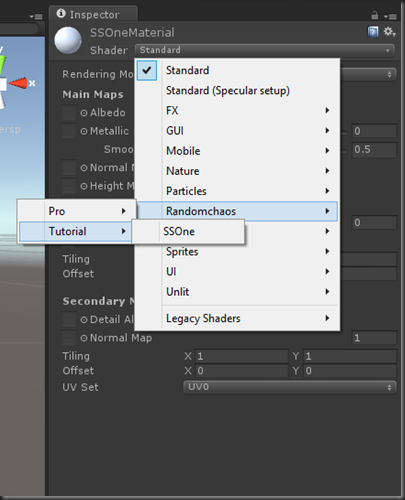
Shader "Randomchaos/Tutorial/SSOne"
{
If we go to add it now, it looks like this
Shader Properties
The properties section defines any variables we want to pass to the shader. At the moment, in the file created by unity, we only have one variable and it’s a texture to be used in this shader. There are a few different types of parameters that can be passed. Before we look at the types, lest look at the definition of the parameter we currently have.
_MainTex ("Base (RGB)", 2D) = "white" {}I guess the “signature” of these parameters is as follows
<param name> (“UI Description”, type) = <default value>
So, for our current parameter it has the name _MainTex, the description that will be shown in the UI is “Base (RGB)” and the type is a 2D texture, it’s default value is white, lets look at that in the UI.
We have a few options when it comes to parameters
Property Type | Description |
| Range(min,max) | Defines a float property, represented as a slider from min to max in the inspector. |
| Color | Defines a color property. (r,g,b,a) |
| 2D | Defines a 2D texture property. |
| 3D | Defines a 3D texture property. |
| Rectangle | Defines a rectangle (non power of 2) texture property. |
| Cubemap | Defines a cubemap texture property. |
| Float | Defines a float property. |
| Vector | Defines a four-component vector property. |
SubShader
The next bit of this file is where all the work is done.
The first thing we see is the Tag, we have a few elements to this part of the Unity Shader file, we can control quite a few things from here
At the moment it looks like this
Tags { "RenderType"="Opaque" }So, as you can see we are using one tag type in there called RenderType and it’s set to Opaque, so no transparency.
So what tag types are there?
Tag Type | Description |
Queue | With this tag type you can set what order your objects are drawn in. |
| RenderType | We can use this to put our shader into different render groups that help Unity render them in the right way. |
| ForceNoShadowCasting | If you use this and set it to true then your object will not cast any shadows, this is great if you have a transparent object. |
| IgnoreProjector | If used and set to true, this will ignore Projectors, now until I decided to write this tutorial I have never heard of these, but they do look useful :D |
Lets look at the available values that can be used for Queue and RenderType
*Descriptions ripped from the Unity docs ;)
We wont use the queue tag, but it’s nice to know how we can use them, you never know, later on, a few posts down the line we might use it.
Queue Value | Description |
| Background | This render queue is rendered before any others. It is used for skyboxes and the like. |
| Geometry (default) | This is used for most objects. Opaque geometry uses this queue. |
| AlphaTest | !lpha tested geometry uses this queue. It’s a separate queue from Geometry one since it’s more efficient to render alpha-tested objects after all solid ones are drawn. |
| Transparent | This render queue is rendered after Geometry and AlphaTest, in back-to-front order. Anything alpha-blended (i.e. shaders that don’t write to depth buffer) should go here (glass, particle effects). |
| Overlay | This render queue is meant for overlay effects. Anything rendered last should go here (e.g. lens flares). |
Again, at the moment we are not too concerned with these tags, but it’s good to be aware of them.
RenderType Value | Description |
| Opaque | Most of the shaders (Normal, Self Illuminated, Reflective, terrain shaders). |
| Transparent | Most semitransparent shaders (Transparent, Particle, Font, terrain additive pass shaders). |
| TransparentCutout | Masked transparency shaders (Transparent Cutout, two pass vegetation shaders) |
| Background | Skybox shaders |
| Overlay | GUITexture, Halo, Flare shaders |
| TreeOpaque | Terrain engine tree bark |
| TreeTransparentCutout | Terrain engine tree leaves. |
| TreeBillboard | Terrain engine billboarded trees |
| Grass | Terrain engine grass. |
| GrassBillboard | Terrain engine billboarded grass. |
LOD
Our shader currently has the value 200, this is used when you want to restrict your shaders, so when deploying to certain platforms you may want to disable shaders > LOD 200. You can check out the the settings that the default shaders come with here. Again, this just for information, we won’t be playing with this value, in fact, we could probably remove it.
CGPROGRAM
This is where our shader code starts.
#pragama
The pragma is telling the unity compiler what shaders we are using. In this pre generated shader, this is a surface shader, it is then followed by the function name for the shader, in this case surf and if a surface shader the followed by the type of lighting algorithm to use, in this case Lambert. There are a few lighting algorithms, in hlsl I have written a few, Unity comes withe Lambert and BlinnPhong. What I do like about surface shaders is we can write our own lighting algorithms too, and we will come to that later.
Shader Variable Declarations
We have a parameter defined at the top, but we then need to create a variable for in inside the CGPROGRAM section, and parameters set that we want to use in the shader need to be duplicated here. We can also declare variables here that are not passed as parameters if we want to too. In this shader we have just the one
sampler2D _MainTex;
Shader Structures
This is where we define the structures to be used that describe the vertex data we are passing in and the data we are passing to other shaders. In this surface shader we are just getting data for the pixels inside each triangle, like a pixel shader, so Unity will have already ran a vertex shader for us and then it will pass the data we require as laid out in the structures defined here.
Defined here is a structure called Input
struct Input
{
float2 uv_MainTex;
};
It is going to pass us the texture coord for the given pixel so we can then use that to get a texel (not pixel) off the texture passed in for the given coordinate.
How on earth does it do that and what is a texel!?!?!?!
OK, this bit is a bit funky :) Remember we set up those texCoords in our earlier runtime quad code
// Set up text coords
texCoords.Add(new Vector2(0, 1));
texCoords.Add(new Vector2(0, 0));
texCoords.Add(new Vector2(1, 0));
texCoords.Add(new Vector2(1, 1));
We said that the top left corner was 0,0 and the top right was 1,0, well when this information is given to the surface or pixel shader it is interpolated, that is to say, when we get given the pixel(s) between the top left corner and top right corner they will be in the range of 0,0 and 1,0. So if the pixel being sent to the surface shader is slap in the middle and at the very top of the mesh, it would have the uv_MainTex value od .5,0. If it was the pixel in the very centre of our rendered quad then uv_MainTex value would be .5,.5. So by using this mapping we can get the right texel from the texture passed in.
Texel = TEXt ELement, the GPU can’t work on a pixel to pixel mapping, the texture you pass could be 32x32 pixels and the area your mesh covers could be, well, the whole screen or 16x16, so the GPU needs to use the texture coordinates to pull out the colour at that point. To do that on a pixel by pixel basis, just would not work…
Surf
And now, the part you have all been waiting for, the actual shader it’s self…
void surf (Input IN, inout SurfaceOutput o)
{
half4 c = tex2D (_MainTex, IN.uv_MainTex);
o.Albedo = c.rgb;
o.Alpha = c.a;
}
This is being call for each and every pixel that your mesh is showing to the camera. The function is being passed the Input structure, as I have explained above this will have the interpolated data for the given pixel with regards to the mesh. There is also an inout parameter, SurfaceOutput o. This structure will be populated by this function then handed onto the rest of the Unity surface pipeline to have the lighting applied to it.
The SurfaceOutput structure is pre defined in Unity and looks like this
struct SurfaceOutput {
half3 Albedo;
half3 Normal;
half3 Emission;
half Specular;
half Gloss;
half Alpha;
};All that is getting populated here is the Albedo and the Alpha. The Albedo is the colour of the surface to be returned for this particular pixel and the Alpha is the corresponding alpha.
ENDCG
Denotes the end of your shader code
Fallback
This is the default shader to use should this shader be unable to run on the hardware.
Play Time
So, that was a lot of waffle, lets look at altering this shader so we can see how some of it works. First we need to use our new material on our rendered object, now you can use our runtimequad or add a new model to the scene and set it’s material to our new SSOneMaterial.
Once you have assigned the new material, give it a texture.
Run this and we can see (or you should) that it runs as it did before with the other shader.
Lets add a new parameter to the shader. In the Properties section add a new property _Tint like this
Properties
{
_MainTex ("Base (RGB)", 2D) = "white" {}
_Tint ("Color Tint", Color) = (1,1,1,1)
}
We need to also set up a variable for this, so under sampler2D _MainTex; add a float4 (a colour is a float4)
sampler2D _MainTex;
float4 _Tint;
We can now use this value to tint the image that we out put like this
void surf (Input IN, inout SurfaceOutput o)
{
half4 c = tex2D (_MainTex, IN.uv_MainTex);
o.Albedo = c.rgb * _Tint;
o.Alpha = c.a;
}
Now, go back to Unity, run the scene, select your object, pick the Tint colour picker and you will see the image get tinted at run time, this can be done in the scene screen when not running too.
Oh, and just to show you can use these 3D shaders with 2D graphics, here is an image of the sahder being used on both a 3D quad and a sprite at the same time.
Naturally, our shader at the moment is not taking into account the alpha for the sprite, but we can sort that out later, for now, just be clear, what ever we render in 3D with shaders we can do in 2D as well, they are the same thing…
As ever comments and critique are more than welcome. The next post we will look at a few more tricks we can do in the surface shader and if I have time take a look at writing out own lighting model for our shader.
Monday, 2 December 2013
Unity3D 4.3 and WCF Web Service
So, why can’t I just add a service reference and use that?
Well, you can, and in VS it will build, but, Unity3D won’t have a clue what you are trying to reference..What helped me find the solution I came to?
As you do, I had a mooch on google, and came across a number of post and cross posts that pointed to this method of accessing a web service in Unity. For some reason, when I used this method, Unity3D would complain about the System.ServiceModel namespace, so, I thought, after finding this link saying I can just drop an assembly in and it gets picked up by Unity3D, I dragged and drop System.ServiceModel and System.Runtime.Serialization into my assets script folder. All this seemed to do was throw up another issue, with the HTTP binding. The assemblies I was adding were .NET 3.0, as I now know, Unity3D is really only compliant with 2.0, though I am sure I read somewhere that it’s a bit of a mix between 2.0 and 3.5, what ever the case, it didn’t like me assembles. In the original post I found it mentioned moving the assemblies to the mono folder, naturally I ignored this, I was not using mono, but, it gave me the idea to start looking around the Unity3D mono installation, and I found a set of C# assemblies in there, two of which are the ones I wanted, so, in an act of desperation, I copied those two assemblies over into my assets script folder….and it only bloody worked!How am I doing it now?
So, create your WCF service as you would normally, I am using .NET4.0 for mine. Before you do anything else, create a WebClient folder in your script folder, I do this just to keep it separate, you could just drop it anywhere in your assets folder I guess.As in the original post describing how to do this I use svcutil to build the proxy class for my Unity3d scripts to use, I created a very simple cmd file that I can run for this, before you run it, make sure your service is running, or it wont be able to build it.
cls
svcutil -out:F:\Development\Unity\KillerCore\Assets\Scripts\WebClient\KillerCoreWebService.cs http://localhost:9997/KillerCoreWebService.svc?wsdl
copy "C:\Program Files (x86)\Unity\Editor\Data\Mono\lib\mono\2.0\System.Runtime.Serialization.dll" "F:\Development\Unity\KillerCore\Assets\Scripts\WebClient\System.Runtime.Serialization.dll"
copy "C:\Program Files (x86)\Unity\Editor\Data\Mono\lib\mono\2.0\System.ServiceModel.dll" "F:\Development\Unity\KillerCore\Assets\Scripts\WebClient\System.ServiceModel.dll"
IMPORTANT: Only run this cmd in a Visual Studio Command prompt.
As you can see it copies my resulting code into my script folder, it then also copies the mono assemblies I need into that folder too. Switch back to Unity3D and it will load the new cs script and dll’s
And that is pretty much that, I can now access my WCF web service from with in my Unity3D game.
KillerCoreWebService Call
My very simple service has one method at the moment called GetHighScoreTable, and for the sake of testing looks like this:{
HighScoreResponse hst = new HighScoreResponse();
for (int x = 0; x < 10; x++)
hst.HighScoreTable.Add(new HighScoreEntity(string.Format("High Score {0}", x + 1), (x + 1 * 501).ToString()));
return hst;
}
Client side use of the Web Service
I have a globals script that I use to hold stuff I want to use all over the place, so, the first thing I need is a client object to connect to the service, like this{
HighScoreResponse response = client.GetHighScoreTable();
return response.HighScoreTable.ToList();
}
{
scores = Globals.GetHighScores();
}
if (scores.Count > 0)
{
GUI.Label(new Rect(10, 110, 100, 20), string.Format("{0} Records", scores.Count));
int cnt = 0;
foreach (HighScoreEntity score in scores)
{
cnt++;
GUI.Label(new Rect(10, 110 + (cnt * 20), 100, 20), string.Format("{0} - {1}", score.Name, score.Score));
}
}
So, after all my moaning and whinging, it turned out not to be that difficult to set up Unity3D so it can access a WCF web service. I hope this helps make your life a bit easier integrating WCF services into your Unity3D projects. If you find a better way, or have issues with this method, then let me know.
[UPDATE]
Tested this for the Web player and it does not work, I guess just the full executable version, if I do need WS ill end up having to write a post/get class to pull stuff back from a server, unless Unity3D gets an update to the .NET framework I guess.
[/UPDATE]
Friday, 13 December 2013
Reinventing some of Unity’s Wheels: Terrain
Why?
First of all, why? Why create this when there is a perfectly good terrain package that comes with Unity? Well, I do like to have a mess about and find out what I can do, no other reason than that really, why? Because I can :) I dare say that the Unity Terrain asset is a much better way of creating your terrain, having not really played with it I don’t know, but I would like to implement my version of Geo Clip mapping see here:And to do that I am going to need to implement height maps and generate the geometry as I need to. Also, later on I may want to procedurally generate my terrain, and I am guessing Ill need something like this.
How?
I started off trying to find out if I could generate my own geometry in Unity, and it turns out you can, this was great news on my quest as it meant I can pass my script a height map and using that to generate the mesh needed to render the terrain.I started off creating a script called TerrainGenerator in my Unity project, in here I added a number of public parameters so they can be set in the editor and I can pass in the height map and the min and max height of my terrain, the txMod is just a variable I can use to modify the texcoords in the vertex, it’s a throw back to the version I did in XNA, and as you can change an assets tiling in the editor, probably not needed now.
{
public Texture2D HeightMap;
public float min = 0;
public float max = 30;
public float txMod = 4.25f;
Naturally you will need a mesh filter to store the mesh in, if you don’t Unity will throw an error when you go to set the mesh in it. I then check to see if a height map has been given and if not generate a plane and render that instead.
Here is the script in it’s entirety:-
{
public Texture2D HeightMap;
public float min = 0;
public float max = 30;
public float txMod = 4.25f;
int myWidth;
int myHeight;
float[,] height;
void Awake()
{
MeshFilter meshFilter = GetComponent<MeshFilter>();
meshFilter.mesh = new Mesh();
if (HeightMap != null)
{
myWidth = HeightMap.width;
myHeight = HeightMap.height;
transform.position = new Vector3(transform.position.x - (myWidth / 2), transform.position.y, transform.position.z - (myHeight / 2));
Color[] heightMapCol = new Color[myWidth * myHeight];
Vector3[] verts = new Vector3[myWidth * myHeight];
Vector3[] normals = new Vector3[myWidth * myHeight];
Vector2[] uv = new Vector2[myWidth * myHeight];
Vector4[] tan = new Vector4[myWidth * myHeight];
Color[] col = new Color[myWidth * myHeight];
height = new float[myWidth, myHeight];
heightMapCol = HeightMap.GetPixels();
for (int x = 0; x < myWidth; x++)
for (int y = 0; y < myHeight; y++)
height[x, y] = Mathf.Lerp(min, max, heightMapCol[x + y * myWidth].r);
// Verts
for (int x = 0; x < myWidth; x++)
for (int y = 0; y < myHeight; y++)
{
verts[x + y * myWidth] = new Vector3(y, height[x, y], x);
normals[x + y * myWidth] = Vector3.up;
uv[x + y * myWidth] = new Vector2((float)x / (myWidth / txMod), (float)y / (myHeight / txMod));
// blend
col[x + y * myWidth].r = Mathf.Clamp(1.0f - Mathf.Abs(height[x, y] - 0) / 8, 0, 1);
col[x + y * myWidth].g = Mathf.Clamp(1.0f - Mathf.Abs(height[x, y] - 12) / 6, 0, 1);
col[x + y * myWidth].b = Mathf.Clamp(1.0f - Mathf.Abs(height[x, y] - 20) / 6, 0, 1);
col[x + y * myWidth].a = Mathf.Clamp(1.0f - Mathf.Abs(height[x, y] - 30) / 6, 0, 1);
float totalWeight = col[x + y * myWidth].r;
totalWeight += col[x + y * myWidth].g;
totalWeight += col[x + y * myWidth].b;
totalWeight += col[x + y * myWidth].a;
col[x + y * myWidth].r /= totalWeight;
col[x + y * myWidth].g /= totalWeight;
col[x + y * myWidth].b /= totalWeight;
col[x + y * myWidth].a /= totalWeight;
}
// Calc normals
for (int x = 0; x < myWidth; x++)
for (int y = 0; y < myHeight; y++)
{
// Tangent Data.
if (x != 0 && x < myWidth - 1)
tan[x + y * myWidth] = verts[x + 1 + y * myWidth] - verts[x - 1 + y * myWidth];
else
if (x == 0)
tan[x + y * myWidth] = verts[x + 1 + y * myWidth] - verts[x + y * myWidth];
else
tan[x + y * myWidth] = verts[x + y * myWidth] - verts[x - 1 + y * myWidth];
tan[x + y * myWidth].Normalize();
// Normals
Vector3 normX = Vector3.one;
Vector3 normZ = Vector3.one;
if (x != 0 && x < myWidth - 1)
normX = new Vector3((verts[x - 1 + y * myWidth].y - verts[x + 1 + y * myWidth].y) / 2, 1, 0);
else
if (x == 0)
normX = new Vector3((verts[x + y * myWidth].y - verts[x + 1 + y * myWidth].y) / 2, 1, 0);
else
normX = new Vector3((verts[x - 1 + y * myWidth].y - verts[x + y * myWidth].y) / 2, 1, 0);
if (y != 0 && y < myHeight - 1)
normZ = new Vector3(0, 1, (verts[x + (y - 1) * myWidth].y - verts[x + (y + 1) * myWidth].y) / 2);
else
if (y == 0)
normZ = new Vector3(0, 1, (verts[x + y * myWidth].y - verts[x + (y + 1) * myWidth].y) / 2);
else
normZ = new Vector3(0, 1, (verts[x + (y - 1) * myWidth].y - verts[x + (y) * myWidth].y) / 2);
normals[x + y * myWidth] = normX + normZ;
normals[x + y * myWidth].Normalize();
}
meshFilter.mesh.vertices = verts;
meshFilter.mesh.tangents = tan;
meshFilter.mesh.normals = normals;
meshFilter.mesh.uv = uv;
meshFilter.mesh.colors = col;
// Index
int[] terrainIndices = new int[(myWidth - 1) * (myHeight - 1) * 6];
for (int x = 0; x < myWidth - 1; x++)
{
for (int y = 0; y < myHeight - 1; y++)
{
terrainIndices[(x + y * (myWidth - 1)) * 6 + 5] = ((x + 1) + (y + 1) * myWidth);
terrainIndices[(x + y * (myWidth - 1)) * 6 + 4] = ((x + 1) + y * myWidth);
terrainIndices[(x + y * (myWidth - 1)) * 6 + 3] = (x + y * myWidth);
terrainIndices[(x + y * (myWidth - 1)) * 6 + 2] = ((x + 1) + (y + 1) * myWidth);
terrainIndices[(x + y * (myWidth - 1)) * 6 + 1] = (x + y * myWidth);
terrainIndices[(x + y * (myWidth - 1)) * 6] = (x + (y + 1) * myWidth);
}
}
meshFilter.mesh.triangles = terrainIndices;
}
else
{
// Verts
Vector3[] verts = new Vector3[4];
verts[0] = new Vector3(-1, 0, -1);
verts[1] = new Vector3(1, 0, -1);
verts[2] = new Vector3(-1, 0, 1);
verts[3] = new Vector3(1, 0, 1);
meshFilter.mesh.vertices = verts;
// Index
int[] index = new int[6];
index[0] = 0;
index[1] = 2;
index[2] = 1;
index[3] = 2;
index[4] = 3;
index[5] = 1;
meshFilter.mesh.triangles = index;
// Normals
Vector3[] normals = new Vector3[4];
normals[0] = Vector3.up;
normals[1] = Vector3.up;
normals[2] = Vector3.up;
normals[3] = Vector3.up;
meshFilter.mesh.normals = normals;
// UV
Vector2[] uv = new Vector2[4];
uv[0] = new Vector2(0, 0);
uv[1] = new Vector2(1, 0);
uv[2] = new Vector2(0, 1);
uv[3] = new Vector2(1, 1);
uv[0] = Vector3.zero;
uv[1] = Vector3.zero;
uv[2] = Vector3.zero;
uv[3] = Vector3.zero;
meshFilter.mesh.uv = uv;
}
MeshCollider mc = GetComponent<MeshCollider>();
if (mc != null)
mc.sharedMesh = meshFilter.mesh;
}
}
I had a bit of a shock when I first ported this code from XNA, nothing rendered, but I had no errors, then I found out that Unity is left handed, so I just had to reverse the winding order of the index and it worked :) something to be mindful of if you are porting code from XNA.
So, that will generate your mesh AND if you give it a mesh collider, will add it to the Unity Physics system too, it was quite cool to then just add some sphere’s and cubes, give them a rigid body and watch them roll and tumble down the hills :D
So, you can now render the terrain and with a diffuse shader will look something like this:
If you look at the code above, you can see I am setting the vertex colour, I am actually not using this as a colour, but a blend weight used to blend the textures as the height of the terrain alters, my custom shader will now use that value to determine what textures should be used where. Also note that Unity (well there may be a way around this, but I am new to Unity so forgive me) will not render large height maps with this technique, if I go for a big height map texture I get this error:
Mesh.vertices is too large. A mesh may not have more than 65000 vertices.
UnityEngine.Mesh:set_vertices(Vector3[])
Custom Terrain Shader
Again, this was a pretty simple port from my XNA sample to Unity, main issue I had was working out how to extend the vertex structure, but finding you can’t and having to use the Color element of the vertx to store my blend values in. I guess I could calculate them in the shader, but that might be another post ;) Again, the online Unity docs were a massive help with this.My shader properties are pretty simple, 4 textures along with their bump maps:
{
_MainTex ("Dirt", 2D) = "red" {}
_BumpMap ("Dirt Bumpmap", 2D) = "bump" {}
_MainTex2 ("Grass", 2D) = "green" {}
_BumpMap2 ("Grass Bumpmap", 2D) = "bump" {}
_MainTex3 ("Stone", 2D) = "grey" {}
_BumpMap3 ("Stone Bumpmap", 2D) = "bump" {}
_MainTex4 ("Snow", 2D) = "white" {}
_BumpMap4 ("Snow Bumpmap", 2D) = "bump" {}
}
#pragma target 3.0
{
UNITY_INITIALIZE_OUTPUT(Input,o);
o.customColor = abs(v.color);
}
void surf (Input IN, inout SurfaceOutput o)
{
float3 col = 0;
col = tex2D(_MainTex,IN.uv_MainTex) * IN.customColor.x;
col += tex2D(_MainTex2,IN.uv_MainTex) * IN.customColor.y;
col += tex2D(_MainTex3,IN.uv_MainTex) * IN.customColor.z;
col += tex2D(_MainTex4,IN.uv_MainTex) * IN.customColor.w;
o.Albedo = pow(col * .5,1.25);
float3 n = 0;
n = UnpackNormal (tex2D (_BumpMap, IN.uv_BumpMap) * IN.customColor.x);
n += UnpackNormal (tex2D (_BumpMap2, IN.uv_BumpMap) * IN.customColor.y);
n += UnpackNormal (tex2D (_BumpMap3, IN.uv_BumpMap) * IN.customColor.z);
n += UnpackNormal (tex2D (_BumpMap4, IN.uv_BumpMap) * IN.customColor.w);
o.Normal = n;
}
To implement it, I created an empty game object, gave it the terrain script, a mesh filter, a mesh renderer and a mesh collider, I then changed the shader to be my custom\terrainshader set the params on script and shader as I wanted.
There are a few other bits and bobs in there to iron out and polish, but think I am now ready to move on to that geo clip map implementation :) I hope it’s going to be as easy as I think it will be….
Here is my shader in full
{
Properties
{
_MainTex ("Dirt", 2D) = "red" {}
_BumpMap ("Dirt Bumpmap", 2D) = "bump" {}
_MainTex2 ("Grass", 2D) = "green" {}
_BumpMap2 ("Grass Bumpmap", 2D) = "bump" {}
_MainTex3 ("Stone", 2D) = "grey" {}
_BumpMap3 ("Stone Bumpmap", 2D) = "bump" {}
_MainTex4 ("Snow", 2D) = "white" {}
_BumpMap4 ("Snow Bumpmap", 2D) = "bump" {}
}
SubShader
{
Tags { "RenderType" = "Opaque" }
CGPROGRAM
#pragma surface surf Lambert vertex:vert
#pragma target 3.0
struct Input
{
float2 uv_MainTex;
float2 uv_BumpMap;
float4 customColor;
};
sampler2D _MainTex;
sampler2D _BumpMap;
sampler2D _MainTex2;
sampler2D _BumpMap2;
sampler2D _MainTex3;
sampler2D _BumpMap3;
sampler2D _MainTex4;
sampler2D _BumpMap4;
void vert (inout appdata_full v, out Input o)
{
UNITY_INITIALIZE_OUTPUT(Input,o);
o.customColor = abs(v.color);
}
void surf (Input IN, inout SurfaceOutput o)
{
float3 col = 0;
col = tex2D(_MainTex,IN.uv_MainTex) * IN.customColor.x;
col += tex2D(_MainTex2,IN.uv_MainTex) * IN.customColor.y;
col += tex2D(_MainTex3,IN.uv_MainTex) * IN.customColor.z;
col += tex2D(_MainTex4,IN.uv_MainTex) * IN.customColor.w;
o.Albedo = pow(col * .5,1.25);
float3 n = 0;
n = UnpackNormal (tex2D (_BumpMap, IN.uv_BumpMap) * IN.customColor.x);
n += UnpackNormal (tex2D (_BumpMap2, IN.uv_BumpMap) * IN.customColor.y);
n += UnpackNormal (tex2D (_BumpMap3, IN.uv_BumpMap) * IN.customColor.z);
n += UnpackNormal (tex2D (_BumpMap4, IN.uv_BumpMap) * IN.customColor.w);
o.Normal = n;
}
ENDCG
}
Fallback "Diffuse"
}
[Edit]
The discovery of the class attribute [ExecuteInEditMode] means that my height map terrain can now be viewed in the editor too :D Awesome !!
[/Edit]
Thursday, 19 February 2015
Unity3D Shaders–Surface Shaders : Lighting Models
Now, lighting models are just the ability to calculate how the light(s) bounces off the surface of the geometry. It does not the ability to do your own shadow mapping.
So, as I said in an earlier post, we declare the lighting model to be used in the shader, in the #pragma section, in all our other surface shaders we have used the Lambert lighting model, we can also use BlinnPhong.
#pragma surface surf Lambert
Lighting models can be written for both forward and deferred rendering pipelines, you can alter the render mode in Unity, by default it uses forward rendering and I think deferred is a pro feature.
Forward rendering is when each light is calculated against each mesh, so the more lights you have the slower things are going to get. Normally a forward render will not have more than 3 lights in it as after that light calculations start to lag.
Deferred rendering is done once ALL the mesh’s are rendered and they are applied to the whole scene in one go, so with deferred you can have lots and lots of lights will very little slow down.
As Unity uses forward render and deferred it a pro feature I am going to focus on forward surface shader lighting models.
Lets create our own lighting model. To do this we need to give it a name. For this first lighting model we will go with a simple diffuse, so all we want to do in the lighting model is find the angle of the light source bouncing off the surface. As it is a surface shader this done on each pixel of each triangle on the mesh being rendered.
Add a shader to your Shaders asset folder and name is SSDiffuse, create a new material called SSDiffuseMaterial, associate the shdaer with the material as we have done in the previous posts.
It should looks something like this
Shader "Randomchaos/Tutorial/SSDiffuse"
{
Properties
{
_MainTex ("Base (RGB)", 2D) = "white" {}
}
SubShader
{
Tags { "RenderType"="Opaque" }
LOD 200
CGPROGRAM
#pragma surface surf Lambert
sampler2D _MainTex;
float _Ramp =1;
struct Input
{
float2 uv_MainTex;
};
void surf (Input IN, inout SurfaceOutput o)
{
half4 c = tex2D (_MainTex, IN.uv_MainTex);
o.Albedo = c.rgb;
o.Alpha = c.a;
}
ENDCG
}
FallBack "Diffuse"
}
Put a mesh into your scene and apply this shader to it, I have used Dude from the old MS XNA Demos, and with the above shader, he looks like this
Lets set up our own lighting model in this shader. First thing we need to do is tell the shader to use our new lighting model, we well call it SimpleDiffuse and replace Lambert with our new model in the #pragma like this
#pragma surface surf SimpleDiffuse
Now we need to provide a function that gets called to do our lighting calcs, in forward rendering, there are two function signatures we can use, this first is for lighting models that we don’t need to know the cameras view direction, like a diffuse shader, the other is for shaders that do, so things like specular calculations (thanks Unity docs).
half4 Lighting<Name> (SurfaceOutput s, half3 lightDir, half atten);
half4 Lighting<Name> (SurfaceOutput s, half3 lightDir, half3 viewDir, half atten);
As we can see, the method name needs to start with Lighting followed by the name of our model, in our case SimpleDiffuse, so our function will look like this
half4 LightingSimpleDiffuse (SurfaceOutput s, half3 lightDir, half atten)
{
return 1;
}
If se save our shader now and check out our rendered mesh, it will look like this
The whole thing is white! That’s because, we are returning the value of 1, but the shader is expecting a half4 (half4 is a small float3 effectively), why is there no error thrown?
It’s because when we set a float<n> or half<n> or any other vector to a single value like this, all the elements of the vector are set to that value, so, in this case 1,1,1,1 is returned.
So in our lighting model we are saying that the surface is being lit at every angle with the colour white. If we change our lighting calculation to look like this
half4 LightingSimpleDiffuse (SurfaceOutput s, half3 lightDir, half atten)
{
return _LightColor0;
}
_LightColor0 is pre loaded by Unity for us, this value is set each time the light calculation is done for another light, so this will also handle multiple lights in a forward rendered scene.
We can then play with the lights colour in the scene or game window and we can see that the texture is still being rendered, but when we set the colour to white in the lighting model, that’s all we see, so the surf shader is being called then the lighting model is being applied to it.
OK, lets start to make this shader start to look like a diffuse effect. We can see in our function signature, we are getting passed a structure called SurfaceOutput. This structure gives us a few elements we can use
struct SurfaceOutput
{
half3 Albedo;
half3 Normal;
half3 Emission;
half Specular;
half Gloss;
half Alpha;
};
At the moment in our surface shader we are only setting the Albedoo and the Alpha, so lets use these in conjunction with the light colour like this
half4 LightingSimpleDiffuse (SurfaceOutput s, half3 lightDir, half atten)
{
half4 c;
c.rgb = s.Albedo * _LightColor0.rgb;
c.a = s.Alpha;
return c;
}
So we set up a half4 variable called ‘c’, this is going to be the value we return, we then set the rgb (Red, Green, Blue) elements of the return variable with the given Albedo multiplied by the light colour, why multiplied? Because if we added it and the light was black, we would just get the Albedo color, which would be wrong, if there is no light, no colours should be bouncing off the surface.
We then set the Alpha as it’s passed in, and return what we have calculated.
The effect of this shader now looks like this
So a little better. By the way, if you change your light to black, there is still some light applied to the mesh, this is the ambient light that is applied to the model. We can switch this off, by default, the ambient colour (in Unity 5) is set to that of the skybox, open the Lighting Window
You can now either alter the Ambient Source or set it’s intensity to 0
Now, our shader is not taking into account the angle of the surface with that of the light, so we get an un natural flat looking render. How do we calculate the angle between the surface and the light, and how do we then modify the colour to reflect (forgive the pun) that?
Well, there is an awesome method we can use called dot. dot(float4, float4) takes two vectors and returns the dot product, of the two vectors. In other words it will return a value between –1 and 1, where 1 would be that the light is directly over the surface, so 90 degrees over it and –1 would effectively be at 90 degrees again but on the other side of the surface, so behind it.
So, how do we do that, how do we know the direction the surface is facing, and the direction of the light hitting that surface?
Well, the light direction we can get easy as Unity hands it to us in our function as a parameter, so that’s that bit solved, but what about the direction the surface is facing….. Remember back in the first post, we covered what a vertex is and the data that is in it?
One of the data elements was called the normal that describes the direction the vertex is facing, so each triangle is made of 3 vertices, each vertex has a normal describing its direction of facing, so, just like with the texture coordinates (described in the second post) these too are interpolated, and if you look at the SurfaceOutput structure, we get given the current pixels “Normal” :) How cool is that!! (I know, I’m a geek)
So, now we can find the angle the light is hitting this pixel of the surface like this
dot(s.Normal, lightDir)
Now, this will return a value, as I said above, in the range of –1 and 1, but I don’t care if it’s behind the surface, I just want to know how much light to reflect, so I am going to use a function called saturate that will clamp the value between 0 and 1 and store it in a variable like this
half NdotL = saturate(dot(s.Normal, lightDir));
We can now use this value to multiply our output colour and our lighting calculation now looks like this
half4 LightingSimpleDiffuse (SurfaceOutput s, half3 lightDir, half atten)
{
half4 c;
half NdotL = saturate(dot(s.Normal, lightDir));
c.rgb = s.Albedo * _LightColor0.rgb * NdotL;
c.a = s.Alpha;
return c;
}
Which then means we get a decent diffuse render like this
So, lets have a look at this with two lights rendered and a floor…
As you can see the surface shader is handling all the lighting passes for us, we don’t have to worry about how many lights. In this scene are two directional lights, one green, one red and a blue point light at the back of the mesh.
I know what you are thinking,
“Why on earth have we just created this shader when I can just use the standard Diffuse shader that ships with Unity?!!!”
Well, I wanted to show you, with the simplest shader I could how we can create our own lighting calculations, and to give you an idea of all the bits Unity is doing for us with a Surface Shader.
I was going to cover more lighting model types and look at some other surface shaders, but I am sure with the small bit of information I have tried to arm you with in these first few posts you can take a look at the examples in the Unity Docs and start experimenting with them your self. You can find the surface shader examples here, and the lighting model examples here.
In my next post, I am going to show how you can combine a surface shader with a vertex shader, using the vertex shader to alter the geometry and also look at a multiple pass surface shader.
As ever, your comments and critique are always welcome, feel free to post :)
<< Previous Next >>